FAQ about installation and updates
Tip
See instructions in Installing and updating Yandex Browser.
Install
Yandex Browser won't install
-
Download the full version of the installer.
-
Install Yandex Browser.
Contact us if this doesn't help.
Where can I download a full version of the installer?
Using the complete version of the Yandex Browser installation file, you can install Yandex Browser even with a slow or no internet connection. Download the full version.
"C:/Users/ ... /Application/browser.exe" cannot be found
-
Temporarily disable all antivirus software before installing Yandex Browser.
How can I install Yandex Browser for all my Windows accounts?
You can't install Yandex Browser for multiple Windows users at once yet.
When installing Yandex Browser, I get the error "Not a valid Win32 application"
The installation file was probably not fully downloaded.
Re-download Yandex Browser.
Error installing Yandex Browser on Linux
If you get an error message telling you that you need appindicator1, try one of the following:
-
Manually download and install the
python-appindicatorlibrary. To do that, run the following command in the console:apt-get install python-appindicator -
Search for this library by name using your graphical software manager.
Updates
Error updating Yandex Browser
-
Disable your firewall, proxy server, and antivirus software.
-
Update Yandex Browser.
-
If the error persists, download the latest version of Yandex Browser.
-
Install Yandex Browser. You don't have to delete the previous browser version.
Why is it important to use the latest Yandex Browser version?
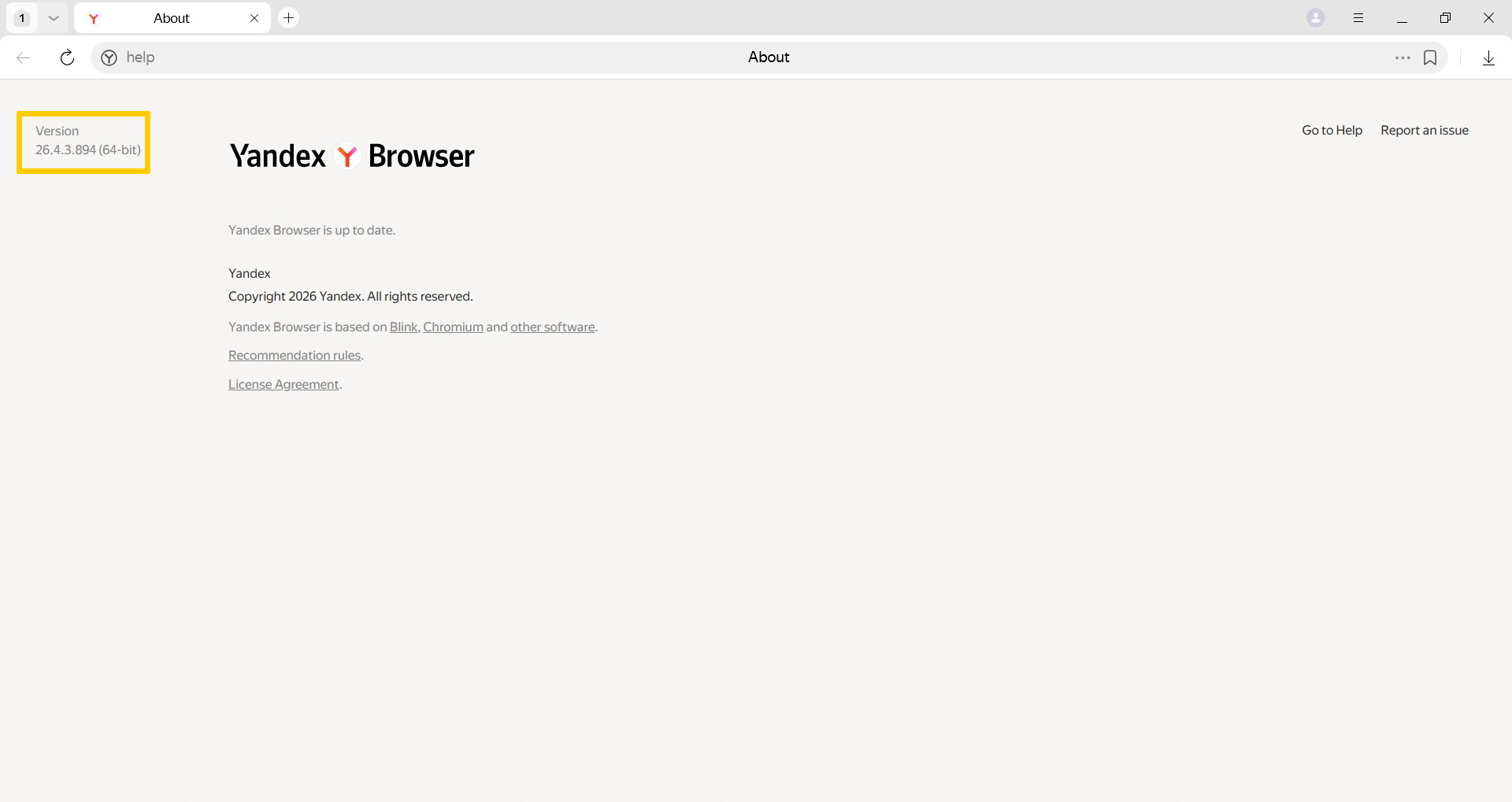
How can I find out my Yandex Browser version?
To find out what version of Yandex Browser you're using, click → Help → About Yandex Browser or enter browser://help in the SmartBox.
Yandex Browser won't update automatically
-
Download the latest version of Yandex Browser.
-
Install Yandex Browser.
What should I do if there's an "Update check failed" error?
-
Restart Yandex Browser. Click → Close Yandex Browser, or press Ctrl + Shift + Q (on Windows) or ⌘ + Q (on macOS), then open the browser again.
-
Click → Help → About Yandex Browser.
-
If the error persists, try temporarily disabling:
- The firewall.
- The proxy server.
- Your antivirus programs.
-
If this doesn't help, download the latest Yandex Browser version and install it over your current version.
How can I turn off auto updates?
You can't disable automatic Yandex Browser updates. Only the latest Yandex Browser version gives you maximum protection against internet-based threats.
How can I disable Yandex Browser updates in the background?
We do not recommend disabling automatic updates in the background, but you can follow these instructions to do so if you must:
-
Click → Settings → System.
-
In the Performance section, deselect the Update the browser, even if it's not running option.
You can enter search queries in the address bar and Yandex Browser will understand what you need.