FAQ about tabs and windows
Tip
See instructions in Manage tabs.
Tabs freeze
You can use the task manager to close incorrectly operating tabs and view Yandex Browser performance statistics. To open the Task Manager, click → Advanced → Task Manager, or use the keyboard shortcut Shift + Esc (Windows) or ⌥ + ⌘ + Esc (macOS).
Windows and tabs open by themselves
If new windows or tabs with empty pages, ads, or suspicious content open by themselves, try the following:
Turn off extensions
-
Click → Extensions and turn off all extensions.
-
Restart Yandex Browser: close it by pressing Ctrl + Shift + Q (on Windows and Linux) or ⌘ + Q (on macOS), then open it again.
-
Clear your cache so Yandex Browser doesn't load a copy of the page that was saved earlier.
-
If this solves your problem, go through your extensions and turn them back on until you find the one that causes the problem. Restart Yandex Browser every time.
-
Disable this extension. You may want to let the developers know about the problem.
Check your computer using an antivirus
You can scan your computer for viruses using Yandex Rescue Tool. This utility will check your computer for malware and remove any threats. You can also use free antivirus software.
Clear the cache
-
Click → History → Clear history or press Ctrl + Shift + Del (on Windows) or Shift + ⌘ + Backspace (on macOS).
-
Under Clear history, select the time period that you want to delete the cache for.
-
Select the Cached files option.
-
Deselect all other options (if you want to clear only the Yandex Browser cache).
-
Click Clear.
Clear cookies
-
Click → History → Clear history or press Ctrl + Shift + Del (on Windows and Linux) or Shift + ⌘ + Backspace (on macOS).
-
Under Clear history, select the time period that you want to delete the cookies for.
-
Select Cookies and other site data and plugins (deselect all other options if you want to delete only cookies).
-
Click Clear.
I can't create a new tab
Close Yandex Browser. Click → Close Yandex Browser, or press Ctrl + Shift + Q (on Windows) or ⌘ + Q (on macOS).
Try turning off the hardware accelerator:
- Click → Settings → System.
- Under Performance, deselect Use hardware acceleration if possible.
- Close the Browser with a keyboard shortcut Ctrl + Shift + Q (on Windows and Linux) or ⌘ + Q (on macOS).
- Restart the browser to apply these changes.
Tabs aren't syncing across my devices
-
In the upper-right corner, click your profile picture → My profile in Yandex Browser.
-
Under My profile, click Manage data.
-
Make sure that the option Open tabs and tab groups is enabled.
After restarting Yandex Browser, tabs and groups disappeared
This could happen because:
-
The Restore tabs and groups at startup option in the → Settings → Interface → Tabs and groups section is disabled.
-
An error occurred in Yandex Browser.
To access the missing tabs and groups:
If your tabs and groups disappeared:
-
Press Ctrl + Shift + T (on Windows and Linux) or ⌘ + T (on macOS). A new window with the missing tabs appears.
-
Close the empty window.
-
Press Ctrl + Shift + Q (on Windows and Linux) or ⌘ + Q (on macOS) to shut down frozen browser processes.
-
Restart Yandex Browser. Click → Close Yandex Browser, or press Ctrl + Shift + Q (on Windows) or ⌘ + Q (on macOS), then open the browser again. The tabs and groups will be restored.
Note
You can restore your tabs only when you restart Yandex Browser for the first time after they disappeared. The tabs will be lost on subsequent restarts.
If you closed Yandex Browser after the tabs disappeared:
-
Open Yandex Browser.
-
Click → History.
-
Click the item with the number of groups and tabs from the previous session.
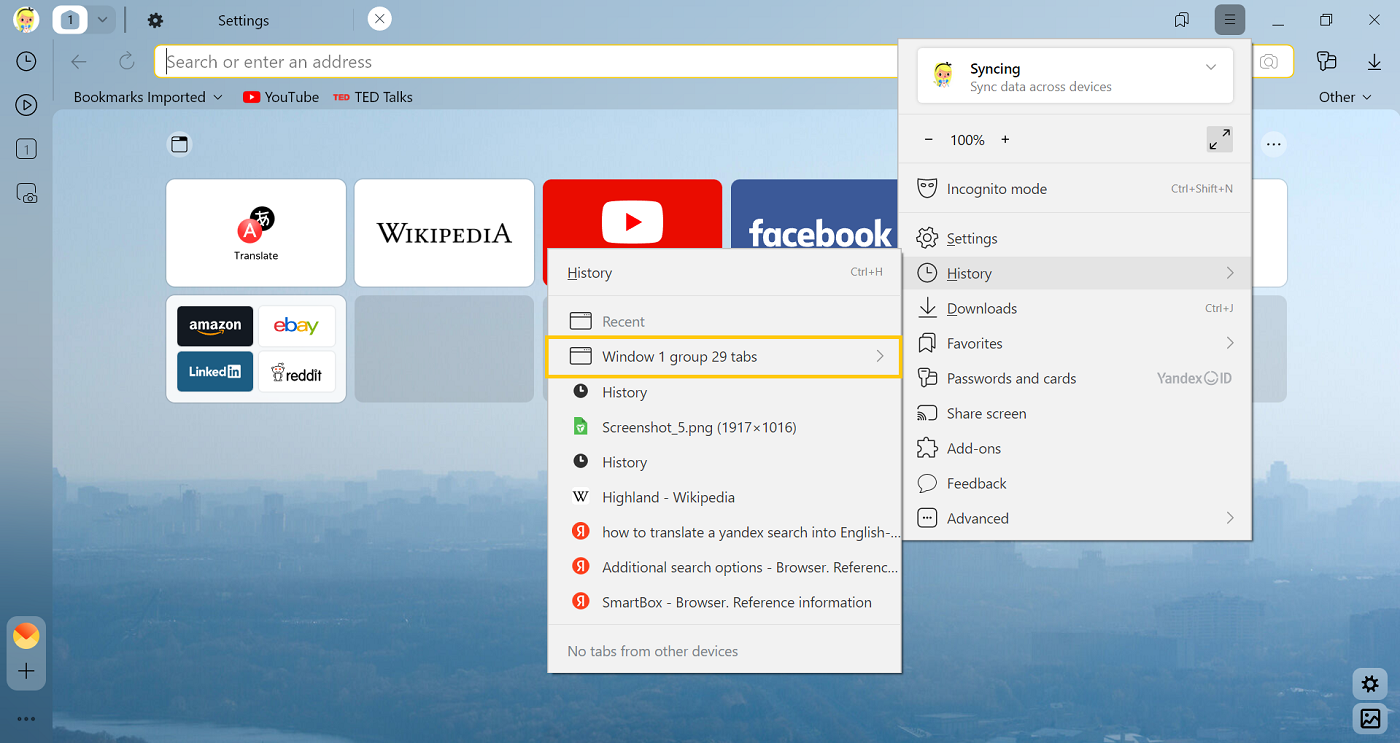
Note
If you completely closed Yandex Browser by selecting → Advanced → Close Yandex Browser, you can't restore the lost tab groups.
If you closed Yandex Browser after the tabs disappeared:
-
Open Yandex Browser.
-
On the side panel, click , select a window, tab, or tab group, and click Restore.
The browser closes with the last tab
This is normal if two or more Yandex Browser windows are open. Then only the active window is closed. If the single open window closes and the Yandex Browser icon remains in the notification area, right-click the icon and select Close browser. Restart Yandex Browser.
Browser updates tabs all the time
Close tabs and applications
Close unused tabs, especially those running videos or complex web apps.
Close other applications in Yandex Browser's Task Manager:
-
Press Shift + Esc (Windows) or ⌥ + ⌘ + Esc (macOS). Yandex Browser's Task Manager will open. It shows which tabs, extensions, and processes are using the most resources.
-
Select the items consuming the most resources → End process.
Update Yandex Browser
Make sure you have the latest browser version installed because updates often include memory optimizations to improve performance.
To find out what version of Yandex Browser you're using, click → Help → About Yandex Browser or enter browser://help in the SmartBox.
If an update is available, install it and restart Yandex Browser.
Turn off extensions
Some extensions may conflict with browser operations and cause excessive memory usage.
-
Click → Extensions and turn off all extensions.
-
Restart Yandex Browser: close it by pressing Ctrl + Shift + Q (on Windows and Linux) or ⌘ + Q (on macOS), then open it again.
-
If this solves your problem, go through your extensions and turn them back on until you find the one that causes the problem. Restart Yandex Browser every time.
-
Disable this extension. You may want to let the developers know about the problem.
Disable power saving mode
If you're using a laptop, power saving mode may limit the resources available to Yandex Browser. Check your system power settings and switch to High performance mode.
I can't drag a window
Some extensions may cause this issue. Here's how you can check your installed extensions:
-
Click → Extensions and turn off all extensions.
-
Restart Yandex Browser: close it by pressing Ctrl + Shift + Q (on Windows and Linux) or ⌘ + Q (on macOS), then open it again.
-
If this solves your problem, go through your extensions and turn them back on until you find the one that causes the problem. Restart Yandex Browser every time.
-
Disable this extension. You may want to let the developers know about the problem.
You can enter search queries in the address bar and Yandex Browser will understand what you need.